Linux Commands
Basic Commands
1. pwd
— When you first open the terminal, you are in the home directory of
your user. To know which directory you are in, you can use the “pwd”
command. It gives us the absolute path, which means the path that
starts from the root. The root is the base of the Linux file system. It
is denoted by a forward slash( / ). The user directory is usually
something like "/home/username".

2. ls — Use the "ls" command to know what files are in the directory you are in. You can see all the hidden files by using the command “ls -a”.

3. cd — Use the "cd"
command to go to a directory. For example, if you are in the home
folder, and you want to go to the downloads folder, then you can type in
“cd Downloads”. Remember, this command is case sensitive, and
you have to type in the name of the folder exactly as it is. But there
is a problem with these commands. Imagine you have a folder named
“Raspberry Pi”. In this case, when you type in “cd Raspberry Pi”,
the shell will take the second argument of the command as a different
one, so you will get an error saying that the directory does not exist.
Here, you can use a backward slash. That is, you can use “cd Raspberry\ Pi” in this case. Spaces are denoted like this: If you just type “cd” and press enter, it takes you to the home directory. To go back from a folder to the folder before that, you can type “cd ..” . The two dots represent back.

4. mkdir & rmdir — Use the mkdir
command when you need to create a folder or a directory. For example,
if you want to make a directory called “DIY”, then you can type “mkdir DIY”. Remember, as told before, if you want to create a directory named “DIY Hacking”, then you can type “mkdir DIY\ Hacking”. Use rmdir to delete a directory. But rmdir can only be used to delete an empty directory. To delete a directory containing files, use rm.

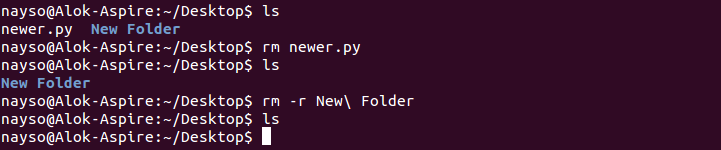
5. rm - Use the rm command to delete files and directories. Use "rm -r" to delete just the directory. It deletes both the folder and the files it contains when using only the rm command.
6. touch — The touch command is used to create a file. It can be anything, from an empty txt file to an empty zip file. For example, “touch new.txt”.

7. man & --help — To know more about a command and how to use it, use the man command. It shows the manual pages of the command. For example, “man cd” shows the manual pages of the cd command. Typing in the command name and the argument helps it show which ways the command can be used (e.g., cd –help).

8. cp — Use the cp command
to copy files through the command line. It takes two arguments: The
first is the location of the file to be copied, the second is where to
copy.

9. mv — Use the mv command to move files through the command line. We can also use the mv command to rename a file. For example, if we want to rename the file “text” to “new”, we can use “mv text new”. It takes the two arguments, just like the cp command.

10. locate — The locate
command is used to locate a file in a Linux system, just like the
search
command in Windows. This command is useful when you don't know
where a file is saved or the actual name of the file. Using the -i
argument with the command helps to ignore the case (it doesn't matter if
it is uppercase or lowercase). So, if you want a file that has the word
“hello”, it gives the list of all the files in your Linux system
containing the word "hello" when you type in “locate -i hello”.
If you remember two words, you can separate them using an asterisk (*).
For example, to locate a file containing the words "hello" and "this",
you can use the command “locate -i *hello*this”.

Intermediate Commands
1. echo — The "echo"
command helps us move some data, usually text into a file. For example,
if you want to create a new text file or add to an already made text
file, you just need to type in, “echo hello, my name is alok >> new.txt”.
You do not need to separate the spaces by using the backward slash
here, because we put in two triangular brackets when we finish what we
need to write.
2. cat — Use the cat command to display the contents of a file. It is usually used to easily view programs.

3. nano, vi, jed — nano and vi are already installed text editors in the Linux command line. The nano command is a good text editor that denotes keywords with color and can recognize most languages. And vi is simpler than nano. You can create a new file or modify a file using this editor. For example, if you need to make a new file named "check.txt", you can create it by using the command “nano check.txt”. You can save your files after editing by using the sequence Ctrl+X, then Y (or N for no). In my experience, using nano for HTML editing doesn't seem as good, because of its color, so I recommend jed text editor. We will come to installing packages soon.

4. sudo — A widely used command in the Linux command line, sudo stands for "SuperUser Do". So, if you want any command to be done with administrative or root privileges, you can use the sudo command. For example, if you want to edit a file like viz. alsa-base.conf, which needs root permissions, you can use the command – sudo nano alsa-base.conf. You can enter the root command line using the command “sudo bash”, then type in your user password. You can also use the command “su” to do this, but you need to set a root password before that. For that, you can use the command “sudo passwd”(not misspelled, it is passwd). Then type in the new root password.

5. df — Use the df command to see the available disk space in each of the partitions in your system. You can just type in df
in the command line and you can see each mounted partition and their
used/available space in % and in KBs. If you want it shown in megabytes,
you can use the command “df -m”.

6. du — Use du to know the disk usage of a file in your system. If you want to know the disk usage for a particular folder or file in Linux, you can type in the command df and the name of the folder or file. For example, if you want to know the disk space used by the documents folder in Linux, you can use the command “du Documents”. You can also use the command “ls -lah” to view the file sizes of all the files in a folder.

7. tar — Use tar
to work with tarballs (or files compressed in a tarball archive) in the
Linux command line. It has a long list of uses. It can be used to
compress and uncompress different types of tar archives like .tar, .tar.gz, .tar.bz2,etc. It works on the basis of the arguments given to it. For example, "tar -cvf" for creating a .tar archive, -xvf to untar a tar archive, -tvf to list the contents of the archive, etc. Since it is a wide topic, here are some examples of tar commands.
8. zip, unzip — Use zip to compress files into a zip archive, and unzip to extract files from a zip archive.
9. uname — Use uname to show the information about the system your Linux distro is running. Using the command “uname -a” prints most of the information about the system. This prints the kernel release date, version, processor type, etc.

10. apt-get — Use apt to work with packages in the Linux command line. Use apt-get to install packages. This requires root privileges, so use the sudo command with it. For example, if you want to install the text editor jed (as I mentioned earlier), we can type in the command “sudo apt-get install jed”.
Similarly, any packages can be installed like this. It is good to
update your repository each time you try to install a new package. You
can do that by typing “sudo apt-get update”. You can upgrade the system by typing “sudo apt-get upgrade”. We can also upgrade the distro by typing “sudo apt-get dist-upgrade”. The command “apt-cache search” is used to search for a package. If you want to search for one, you can type in “apt-cache search jed”(this doesn't require root).

11. chmod — Use chmod to make a file executable and to change the permissions granted to it in Linux. Imagine you have a python code named numbers.py in your computer. You'll need to run “python numbers.py” every time you need to run it. Instead of that, when you make it executable, you'll just need to run “numbers.py” in the terminal to run the file. To make a file executable, you can use the command “chmod +x numbers.py” in this case. You can use “chmod 755 numbers.py” to give it root permissions or “sudo chmod +x numbers.py” for root executable. Here is some more information about the chmod command.

12. hostname — Use hostname to know your name in your host or network. Basically, it displays your hostname and IP address. Just typing “hostname” gives the output. Typing in “hostname -I” gives you your IP address in your network.

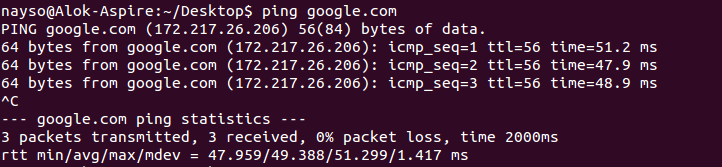
13. ping — Use ping to check your connection to a server. Wikipedia says, "Ping
is a computer network administration software utility used to test the
reachability of a host on an Internet Protocol (IP) network". Simply,
when you type in, for example, “ping google.com”, it checks if it
can connect to the server and come back. It measures this round-trip
time and gives you the details about it. The use of this command for
simple users like us is to check your internet connection. If it pings
the Google server (in this case), you can confirm that your internet
connection is active!
Tips and Tricks for Using Linux Command Line
- You can use the clear command to clear the terminal if it gets filled up with too many commands.
- TAB can be used to fill up in terminal. For example, You just need to type “cd Doc” and then TAB and the terminal fills the rest up and makes it “cd Documents”.
- Ctrl+C can be used to stop any command in terminal safely. If it doesn't stop with that, then Ctrl+Z can be used to force stop it.
- You can exit from the terminal by using the exit command.
- You can power off or reboot the computer by using the command sudo halt and sudo reboot.
Once you've mastered the Linux commands for beginners, you can move onto these Useful Intermediate Linux Commands.
good going,bro
ReplyDelete